

This article explains how to configure Single Sign-On (SSO) between your Wazoku platform and Google Workspace using SAML 2.0.
Once configured, users will be able to sign in to your platform using their Google Workspace credentials.
Before You Start
In the examples below, yourdomain.wazoku.com is used as a sample domain. Replace this with your own platform URL.
Before configuring SSO, ensure that:
- You have administrator access to the Google Workspace Admin Console
- You can access your platform’s SAML metadata file at:
https://yourdomain.wazoku.com/saml_ol/metadata.xml - You have permission to create and manage custom SAML applications
Step 1: Create a Custom SAML Application
- Sign in to the Google Admin Console at admin.google.com
- Go to Apps → Web and mobile apps
- Click Add app → Add custom SAML app
- Enter an application name (for example, Wazoku SSO)
- Click Continue
Step 2: Configure Google as the Identity Provider
After creating the application, Google will display the Identity Provider details.
- Make a note of the SSO URL
- Make a note of the Entity ID
- Download the Certificate
Click Continue.
These details will be required to complete the configuration.
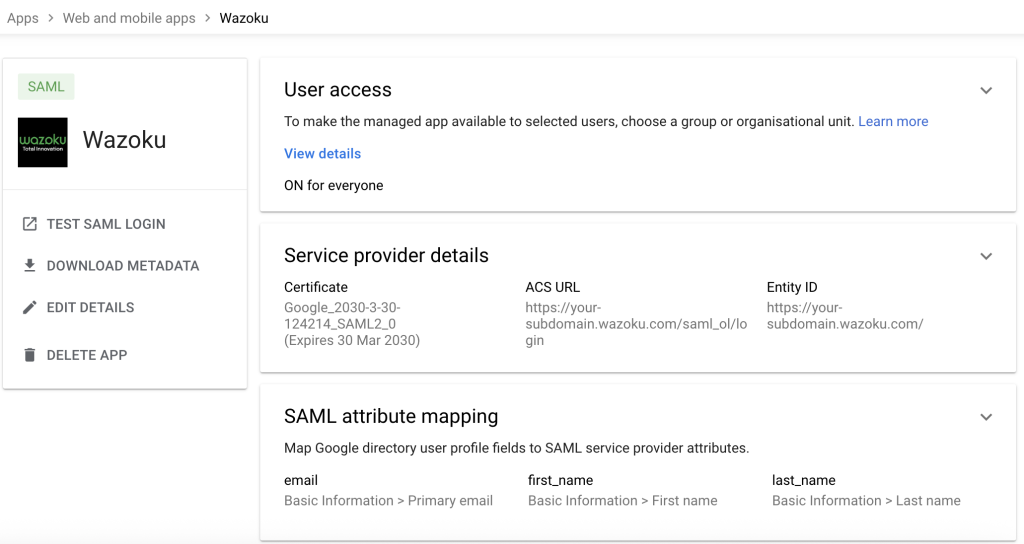
Step 3: Configure Service Provider Details
Google Workspace does not support uploading Service Provider metadata. Values must be entered manually.
Enter the following:
Configure:
- Name ID format: Unspecified
- Name ID: Primary email
Click Continue.
Pay special attention to the trailing slash ‘/’ at the end of the Entity ID
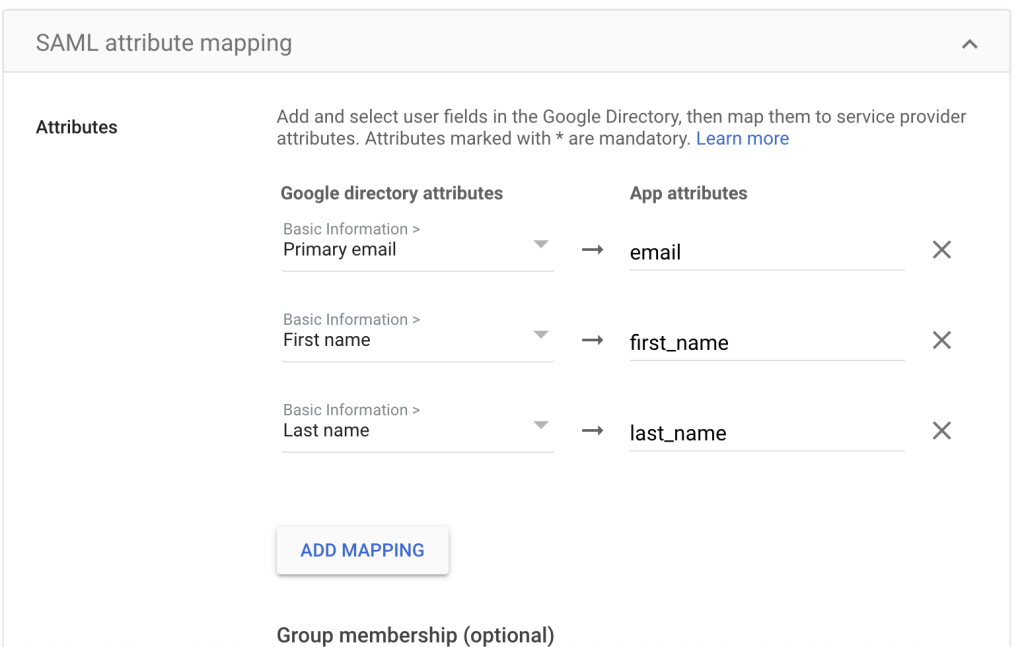
Step 4: Configure Attribute Mapping
Add the following mappings:
- Primary email → email
- First name → first_name
- Last name → last_name
Save the configuration.
This ensures that user details are correctly passed during authentication.
Step 5: Assign Users and Groups
- Open the newly created SAML application
- Select User access
- Enable the application for the required users or groups
- Save your changes
Only assigned users will be able to use SSO.
Step 6: Download Identity Provider Metadata
- Open the SAML application
- Download the IdP metadata XML file
Send the following to support@wazoku.com:
- IdP metadata XML file
- Confirmation that the email attribute is used
- Your platform URL
Wazoku will complete the configuration on your platform.
Step 7: Test Single Sign-On
Once the setup is complete:
- Open your platform login page
- Select Sign in with SSO
- Authenticate using your Google Workspace account