

What is Framework?
Framework introduces structured stage gates into Challenges. By enabling Framework on a Challenge, managers can define work items (stage-level requirements) that automatically become tasks when an idea enters a stage.
This ensures that idea creators clearly understand what is required of them before their idea can progress.
Who can create a Framework? Site admins, Community admins and Challenge managers
How to create a Framework
- Navigate to the challenge you wish to create a Framework for
- Click Manage
 > Create Framework
 - A Framework tab appears on the challenge
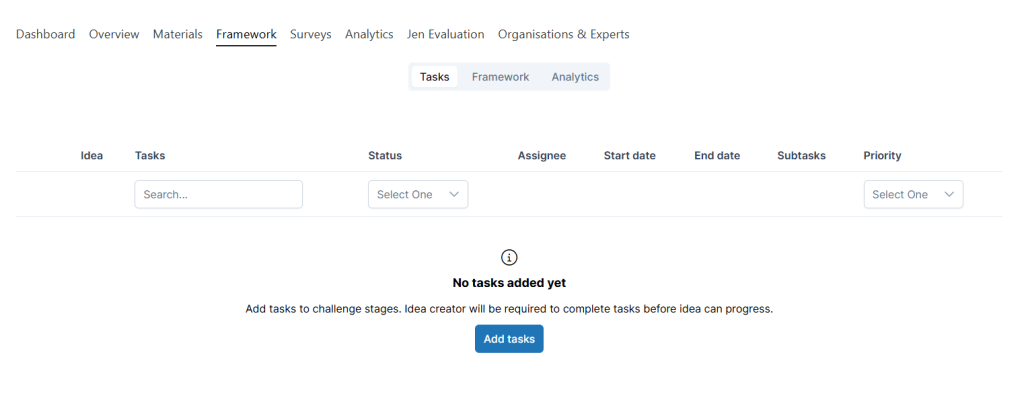
- Select Add tasks button
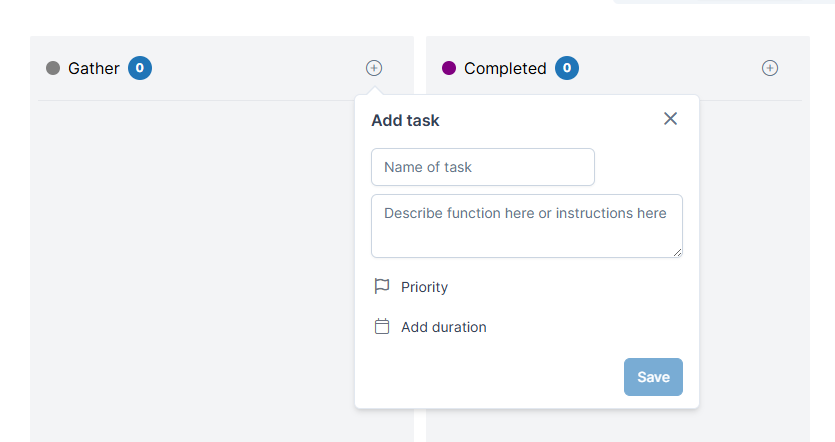
- Add Tasks to each workflow stage as required by selecting the + icon
- Complete the required fields of:
- Name of task and Description
- Priority: Low, Medium or High
- Add duration – Select how long Assignees have to complete a Task. Notifications will be sent when the deadline is reached.
Managing Tasks as a Challenge Manager
Once Tasks have been created on the Framework a Task for each idea in the relevant stage will be generated. You can view Tasks in Kanban style on the Framework tab. This will show all the Tasks created per Stage.
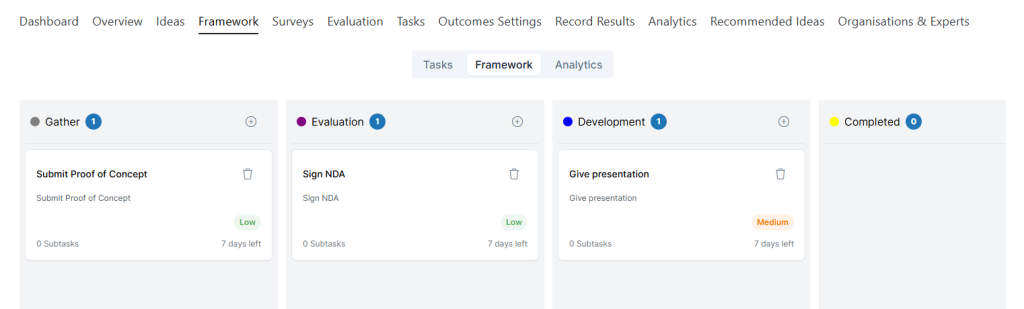
Click on a Task to view it.
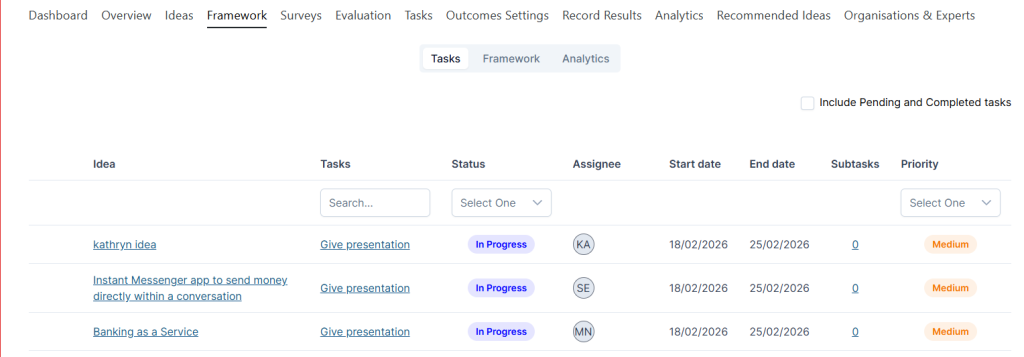
Challenge Managers can also view the Tasks assigned per Idea by clicking the Tasks tab. Filters can be used to refine the Tasks returned.
About Subtasks
Subtasks can be added to individual Tasks on ideas. They can be added via the Task Detail view. Users other than the idea creator can be added as Assignees here. When all subtasks are completed the parent Task is also marked Completed.
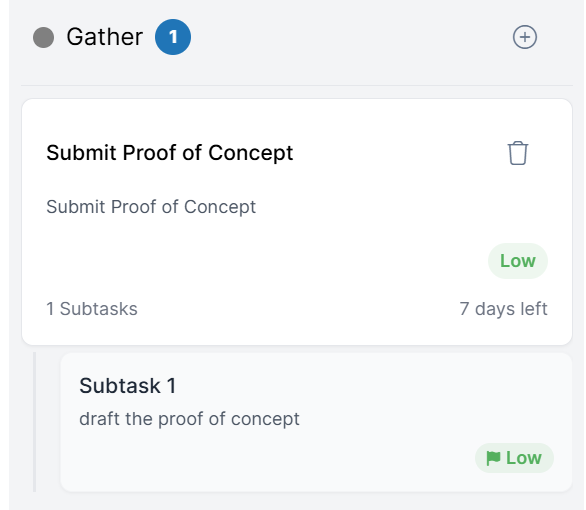
Note: You cannot add additional subtasks when a Task is overdue.
About Assignees
Assignees on Tasks will be the Idea creator and team members as default. Subtasks can be assigned to other users. Assignees can update the Task status.
Managing Tasks as an Assignee
When a user is assigned to a task, they receive an email notification and In platform notification. Assignees also see their tasks on their To-do List page and can view on the Idea page of the related idea.
Completing Tasks
Tasks follow a structured workflow:
- To-Do – Task is assigned but not yet started.
- In Progress – Task is currently being worked on.
- On hold – On hold for now
- Completed – Task is completed and meets all requirements.
If you are assigned to a Task you can update your progress or complete the Task with these steps:
- Follow the link from your notifications or To-do list to the Task you wish to update
- Select the dropdown arrow next to Status and select a new status.
- Resource upload is required to change status to Completed for Idea Creators. Site Admin, Community Admin, Challenge Manager and Idea Manager can mark a Task as complete without uploading a resource.
Once all the tasks associated with an ideas within that challenge stage are completed, the idea will automatically move to the next stage of the challenge.
How to disable a Framework
- Navigate to the challenge on which you wish to disable Framework
- Click Manage > Disable Framework
- The Framework tab is removed from the challenge