Who can do this? Members of the Designer Licences Group and Admins
Filter Reports
- At the top of the Reports list select the Manage reports button.
- Here you will see all the Reports and can search them by name and filter them by Level and Default Access.
Manage Levels
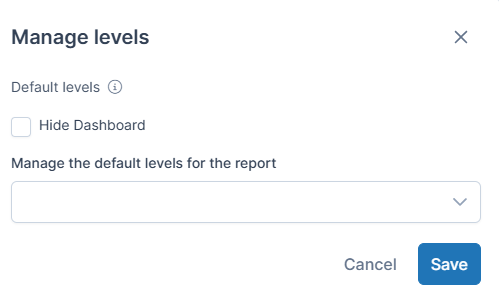
Reports can be set to be visible at certain levels: Site, Community or Challenge.
How to change the level:
- At the top of the Reports list select the Manage reports button.
- Find the report you want to update and select Manage Level
- From the dropdown list choose the level/s you wish the reports to be shared at. You can choose more than one.
- You can also choose to Hide a report which will mean nobody will have access to the report.
- Click Save.
Note: If you unhide a report any pre-existing access rules will be applied.
Manage Access
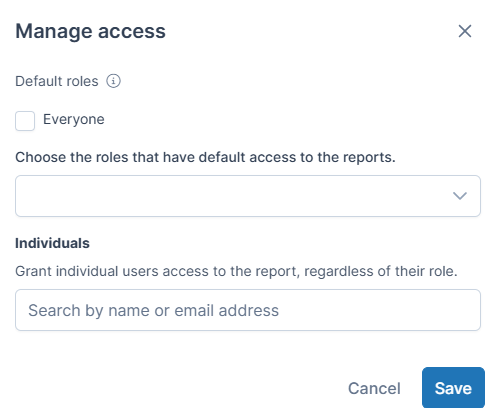
Choose the roles and individuals that have default access to a report.
How to change the access:
- Next to the report select Manage access. Here you can choose to define access according to:
- Roles: Choose the user roles that have default access to the report. From the dropdown list choose the required user roles. You can choose more than one. Options are:
- Site Admin
- Community Admin
- Challenge Manager
- Lead Evaluator
- Evaluator
- Moderator (idea or comment)
- Individuals: Grant individual users access to the report, regardless of their role. Search by name or email address.
- Everyone: every user on the platform will have access
- Roles: Choose the user roles that have default access to the report. From the dropdown list choose the required user roles. You can choose more than one. Options are:
- Click Save.
Note: If the report gets hidden or disabled by a Designer or Admin the report won’t be available regardless of these access options.